Use Settings to make Portfolio Boss comfortable to read, choose notification and trading preferences, and protect your local data. Open Settings from the main navigation, then choose one of the five tabs.
Choose the right tab
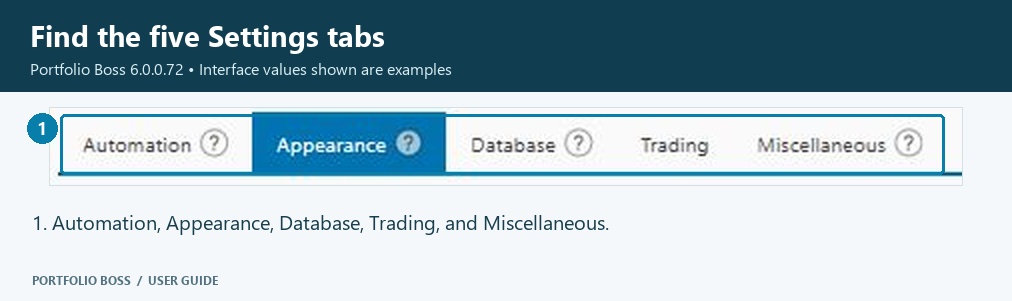
| Tab | Use it for |
|---|---|
| Automation | Windows startup, trading-dashboard emails, mail delivery and the late-data cutoff. |
| Appearance | Accent colors, theme, percentage scaling, trading-state colors and position colors. |
| Database | Find the database folder; back up, restore or transfer your local data. |
| Trading tab | Global order merging and entry/exit order defaults. |
| Miscellaneous | Memory caching, test-queue preferences, result names, confirmations, notifications, tutorial icons, data options and layout reset. |
A useful first visit
- Open Appearance and choose a readable theme and scale. The state and position colors are optional ways to make the dashboard easier to scan.
- Open Database, locate your folder and read the backup procedure before you begin building a large strategy library.
- If you want trading notifications, review Automation, the recipient list and mail service.
- Review Miscellaneous before starting long test sessions, particularly automatic queue resumption and cloud-credit notifications.
- Before automated trading, review the global Trading defaults and the account and strategy settings in the dashboard.
Where brokerage connections live
Broker accounts are managed in the Trading Dashboard. Use Connect Accounts to the Trading Dashboard for the current Interactive Brokers workflow. The Trading tab sets order preferences; it is not the account-connection screen.