
TRADING DASHBOARD & APM · 8 OF 8 · LIFECYCLE CONTROLS
Separate stopping the workflow from confirming the positions are closed.
The strategy row contains dedicated Reset and Stop/remove controls. Read their on-screen instructions before confirming an action.
← Trading Dashboard guide · Use the overview to choose a different task.
Find the correct control
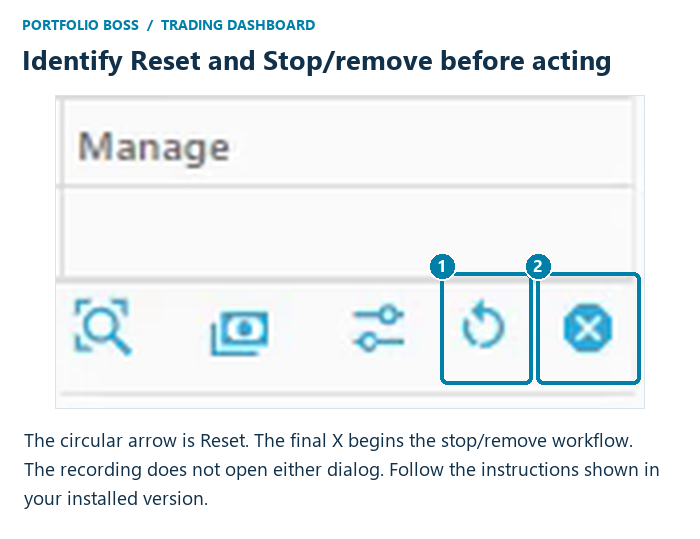
Select the intended account and scroll the Trading strategies grid to the right. In the Manage column, the circular arrow is Reset and the final X is the stop/remove control.
| Similar-looking control | Important distinction |
|---|---|
| Circular Reset arrow on the strategy row | A strategy-management action. Read the action’s own explanation before using it. |
| Reset All inside Trading Settings | Resets setting overrides to inherited values. This is a different operation. |
| Final X in the strategy row’s Manage column | Starts the stop/remove workflow for that strategy. |
| X at the top right of a details window | Closes that window. |
| Remove account beside the top account tabs | An account-level control, separate from the strategy-row workflow. |
Reset: use the current dialog’s explanation
Dan deliberately does not demonstrate resetting a strategy in this live-account walkthrough. The recording therefore does not establish which trading records or state the reset changes. Open it only when you intend to review that operation, read the explanation presented by your installed version, and do not confirm if the result is unclear. Ask support for the intended reset procedure when needed.
Reset is not a substitute for Refresh in the broker connection dialog, and it should not be used as a guess when an order or position needs investigation. Start with Orders and Broker Position Overview to understand what happened.
Stop trading and remove a strategy
Use the strategy row’s X to begin its stop/remove workflow. Dan explains that the on-screen instructions cover how to handle the remaining positions, including closing them automatically or closing them manually. Read those instructions for the exact choices available in your version.
- Verify the account and strategy. Make sure the action applies to the intended row.
- Review current holdings and outstanding orders. Know what remains associated with the strategy before deciding how to finish.
- Read and choose the position-handling path. Follow the dialog’s instructions for automatic closing or manual closing. Do not assume that removing a row alone proves the positions were sold.
- Confirm only the action you intend. If you choose manual closing, complete that process at the broker as directed. If you choose automatic closing, monitor the resulting orders and their actual fills.
Verify the result at the broker
After the stop/remove process, check Orders and reopen Show positions. Confirm whether any shares remain, how they are assigned, and whether any are now unmanaged. An order request, a canceled order, and a completed position close are different outcomes.
Based on Dan’s November 6, 2026 walkthrough in Portfolio Boss Unite 6.0.0.71. Screenshots show an example account and historical values, not recommended allocations or expected returns. Brokerage account identifiers have been masked. Labels and available features can vary by version and license.


Responses