
TRADING DASHBOARD & APM · 4 OF 8 · STRATEGY MANAGEMENT
See what is trading—and what each strategy holds.
Use the strategy name for its configuration, and Strategy details for the trading record, allocation chart, and positions.
← Trading Dashboard guide · Use the overview to choose a different task.
Add a strategy to the selected account
Select the account first, then click Add strategy above the Trading strategies panel. Follow the prompts for the strategy you want to assign. Dan already has his example strategy added; the Add strategy control is unavailable during this portion of the recording, so the selection dialog is not demonstrated.
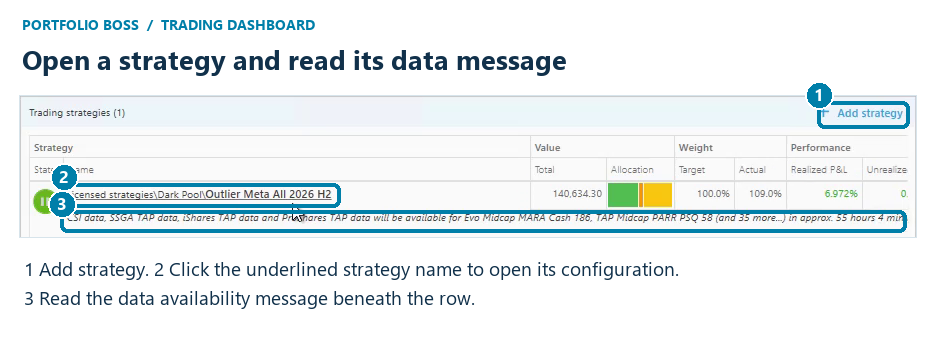
If Add strategy is unavailable, read any explanation shown by your version and confirm the account setup and your licensing. The recording does not establish a single cause for every disabled Add strategy button.
Click the underlined strategy name to open the strategy itself and review its full configuration. This is useful when you want to understand the rules and instruments behind the trading activity. See the existing Multi-Strategy and Meta-Strategy guides for how strategies can be combined.
Read the message below the row
The line under a strategy can identify required data sources and when that data is expected to become available. In the Outlier example, Dan discusses alternative data in addition to ordinary price-and-volume history. The visible message lists CSI data and several ETF-provider TAP data sources.
Read the message as a status explanation. A strategy waiting for required data and an account disconnected from the broker are different conditions; the broker connection is shown in the Account panel.
Open Strategy details
Click the strategy’s allocation bar, or scroll right to the Manage column and use its first, magnifying-glass-style control. The tooltip in the recording says it opens strategy details. This is separate from clicking the underlined strategy name to open its configuration.
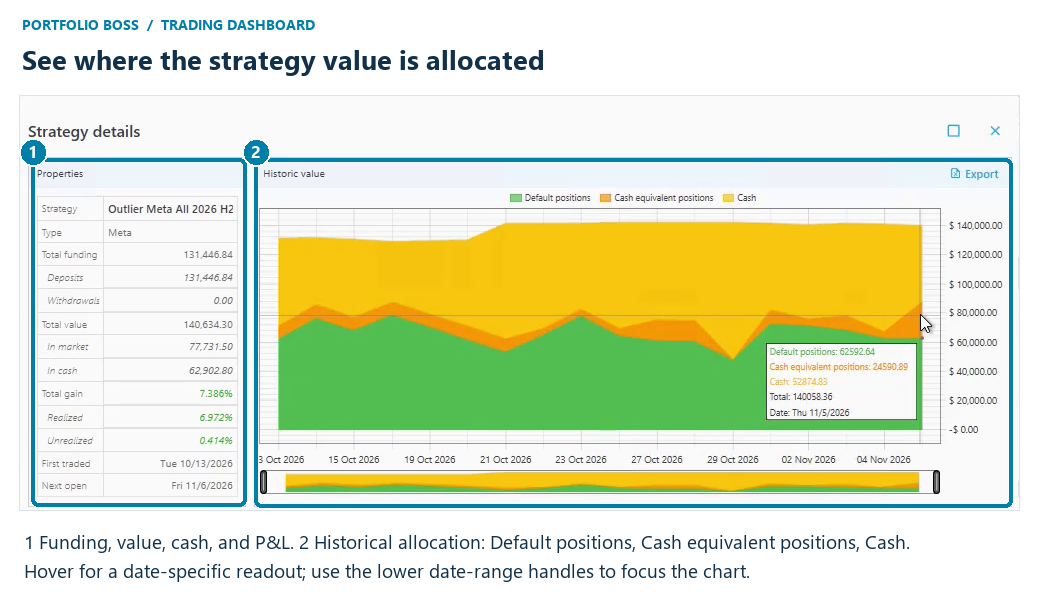
| Properties | What they help you inspect |
|---|---|
| Strategy and Type | Confirm which strategy you opened; Dan’s example is a Meta strategy. |
| Total funding, Deposits, Withdrawals | Understand the funds assigned over time before interpreting the change in value. |
| Total value, In market, In cash | See the current composition of the tracked strategy value. |
| Total gain, Realized, Unrealized | Separate the reported overall result from closed-position and still-open-position results. |
| First traded and Next open | See the trading start and the next displayed market-opening date. |
Drag the handles in the small strip below the chart to focus the visible date range. Use the chart’s Export control when you want its data. Changes in deposits or withdrawals are part of the funding history; they should not be mistaken for trading profits.
Inspect the underlying positions
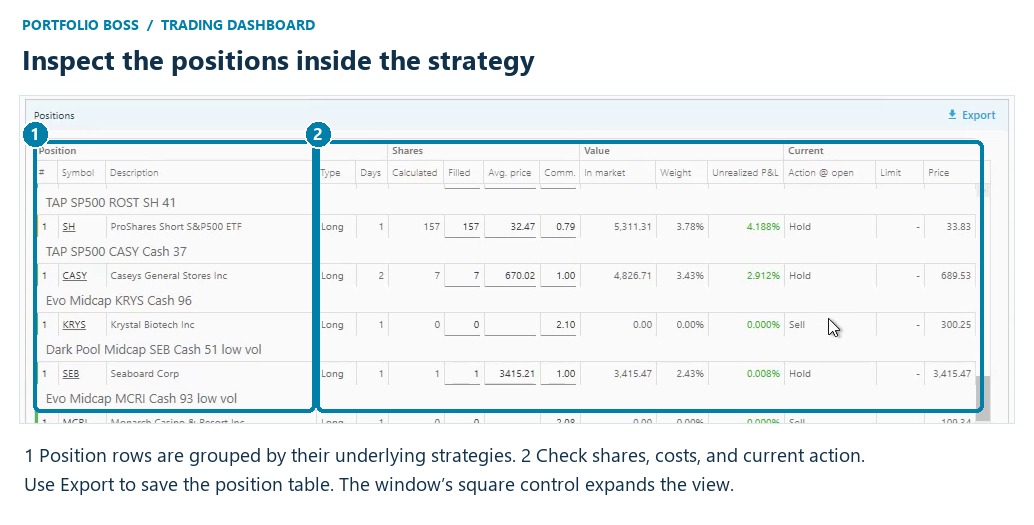
For each position, check the symbol and description, position type, days held, calculated and filled shares, average price, commission, value in market, weight, unrealized P&L, and the current action such as Hold or Sell. Use the horizontal and vertical scrollbars to reach the rest of the table.
A calculated quantity is not proof that the broker filled that quantity. Likewise, a current action describes the strategy’s instruction; use the Orders panel for execution status. For the broker’s actual holdings and their assignments, use Show positions.
Use the square at the top right of the details window to maximize it. Close the window with its X when you are finished. That window-close X is separate from the stop/remove control on the strategy row.
Find the five Manage controls
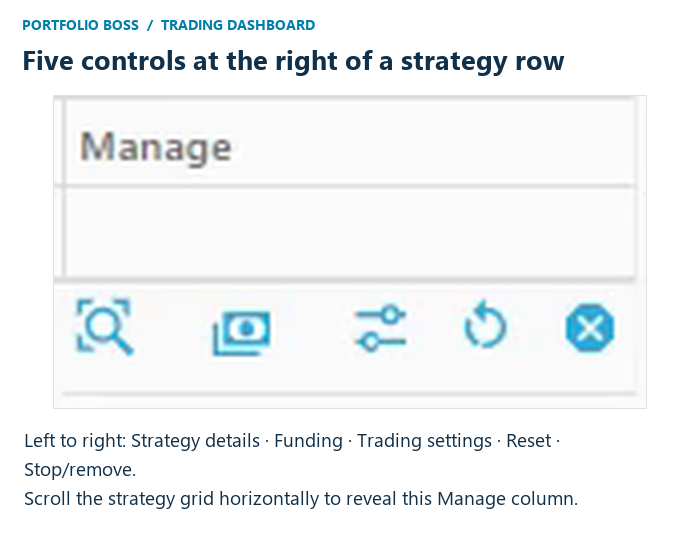
| From left to right | Use it for |
|---|---|
| Strategy details | The allocation chart, properties, and position table described above. |
| Funding | Target percentages or manual strategy funding. |
| Trading settings | Entry and exit settings for this strategy. |
| Reset | Read the Reset guidance before using it. |
| X / Stop-remove | Begin the stop/remove workflow and follow its instructions for positions. |
Based on Dan’s November 6, 2026 walkthrough in Portfolio Boss Unite 6.0.0.71. Screenshots show an example account and historical values, not recommended allocations or expected returns. Brokerage account identifiers have been masked. Labels and available features can vary by version and license.


Responses