
TRADING DASHBOARD & APM · 5 OF 8 · FUNDING
Decide how much of the account a strategy should manage.
Choose a percentage target for auto-rebalancing, or manage the strategy’s funding manually.
← Trading Dashboard guide · Use the overview to choose a different task.
Open Manage Funding
Select the account, find the strategy, scroll right to the Manage column, and click the money/funding icon. Check the strategy name in the Manage Funding heading before editing.
The dialog shows the current strategy value and a suggested minimum. Read that minimum for the selected strategy; the number in Dan’s screenshot belongs to his example and is not a universal account requirement.
Use Auto-rebalance for a target share of the account
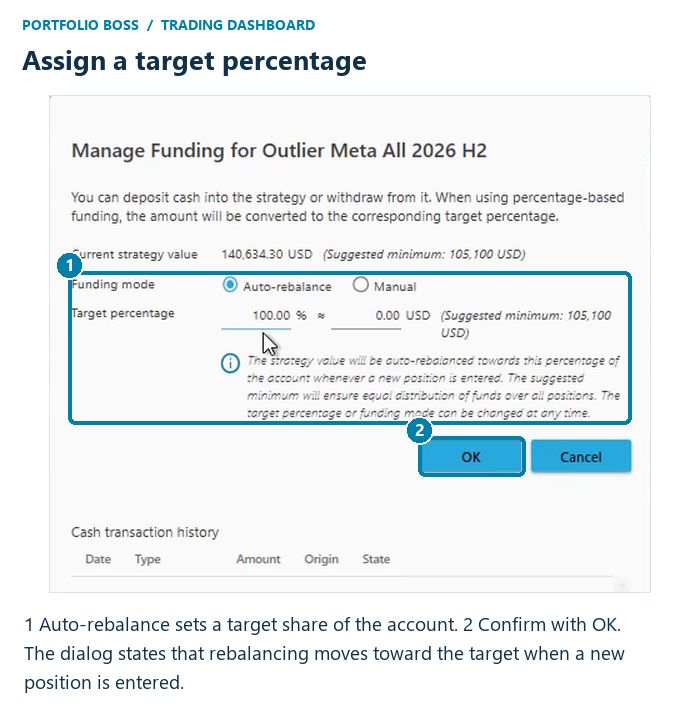
- Select Auto-rebalance.
- Enter the Target percentage of the account you want this strategy to manage.
- Read the explanatory text and review the strategy name and target.
- Click OK to confirm, or Cancel to leave without confirming the change.
The dialog states that the strategy value will be rebalanced toward the target percentage whenever a new position is entered. This is important: a target is not a promise that current holdings immediately equal that percentage. The dashboard shows both Target and Actual weight so you can distinguish your instruction from the current state.
When percentage-based funding is in use, the dialog explains that a cash deposit or withdrawal is converted into the corresponding target-percentage change. Read the displayed conversion and resulting target before confirming.
Dan says that most users in his workflow choose percentage-based funding. He mentions 95–99% as an example of leaving a cash cushion in a retirement account. Treat that as his illustration, not a preset or a suitable percentage for every account; the available cash, account permissions, instrument prices, and costs still matter.
Use Manual for explicit funding changes
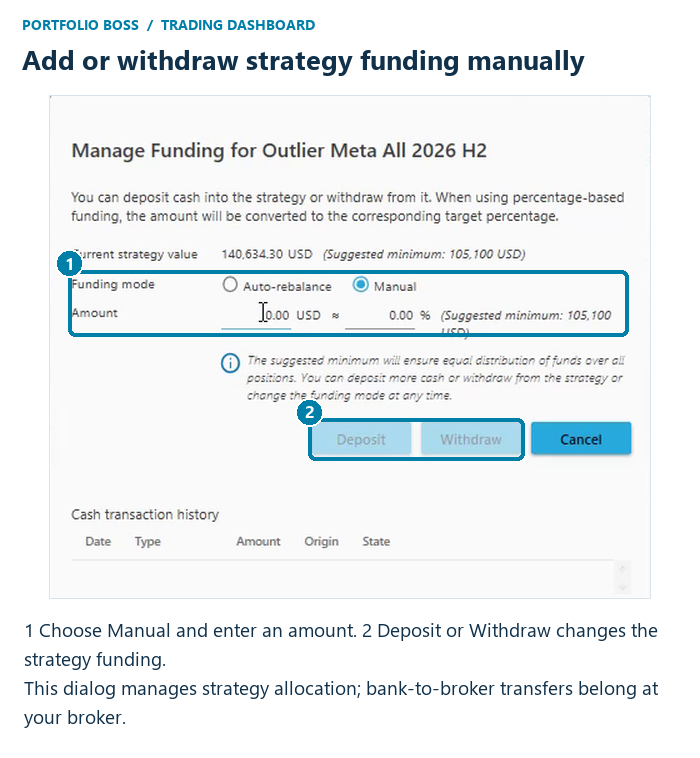
- Select Manual.
- Enter the amount you intend to add to or remove from the strategy.
- Review the displayed amount and any percentage equivalent or suggested minimum.
- Use Deposit or Withdraw as appropriate, or cancel if you are only inspecting the settings.
Manual mode lets you control the strategy’s assigned funding without using an ongoing account-percentage target. Dan gives a fixed-dollar allocation as an example. You can change the funding mode or target later; read the current dialog before applying the change.
Review funding across the account
- Check Cash transaction history in the lower part of the dialog. Its columns include Date, Type, Amount, Origin, and State.
- Recheck Target and Actual weight in the strategy grid. A difference alone does not tell you the broker executed an immediate rebalance.
- Review all strategy allocations together. When multiple strategies or meta-strategies share an account, consider their combined targets and the cash the account needs.
- Inspect Orders and positions if you need to confirm what has actually traded. Funding instructions and filled broker orders are different records.
Based on Dan’s November 6, 2026 walkthrough in Portfolio Boss Unite 6.0.0.71. Screenshots show an example account and historical values, not recommended allocations or expected returns. Brokerage account identifiers have been masked. Labels and available features can vary by version and license.


Responses