
TRADING DASHBOARD & APM · 1 OF 8 · START HERE
Spend less time handling trades. Keep a clear view of the account.
The Trading Dashboard brings account connections, strategy funding, order execution, and position checks into one working view.
Open Trading Dashboard in the left navigation. If only icons are showing, use the hamburger button at the upper left to reveal the menu names. Select the account tab you want to work with before reading balances or changing settings.
What Autonomous Portfolio Management does for you
A trading signal is only the beginning. Someone still has to assign funds, calculate and send orders, track what actually filled, record commissions, and check that the positions at the broker belong to the intended strategies. Autonomous Portfolio Management (APM) brings that ongoing work together in Portfolio Boss.
That matters when an account contains several strategies—or a meta-strategy containing many underlying strategies. Dan’s example uses a single Outlier meta-strategy to manage a collection of strategies. The dashboard gives him one place to follow the combined activity and drill into individual holdings.
| Work to manage | Where APM makes it visible |
|---|---|
| Which account is trading? | Account tabs, broker identity, connection status, and paper/live mode. |
| How much does each strategy control? | Strategy funding, target and actual weights, and allocation details. |
| What happened to the trades? | Order state, calculated and filled shares, execution prices, cash, and commissions. |
| Do the broker holdings match the records? | Show positions compares broker shares with their Portfolio Boss strategy assignments. |
Portfolio Boss uses AI and machine learning to help develop strategies. Operating a trading account also requires persistent records and explicit execution settings. In this workflow, the trading database and broker reconciliation provide continuity: a conversation with an AI assistant alone is not the account’s order ledger. Keep research, execution settings, and actual broker holdings connected through the dashboard.
Dan describes a routine of authenticating his broker session, enabling notifications, and checking in while Portfolio Boss handles the day-to-day trading. The computer or cloud machine running Portfolio Boss and its broker application must remain available. Broker authentication and restarts still need attention; use the setup checklist for your application and account.
Find your way around the dashboard
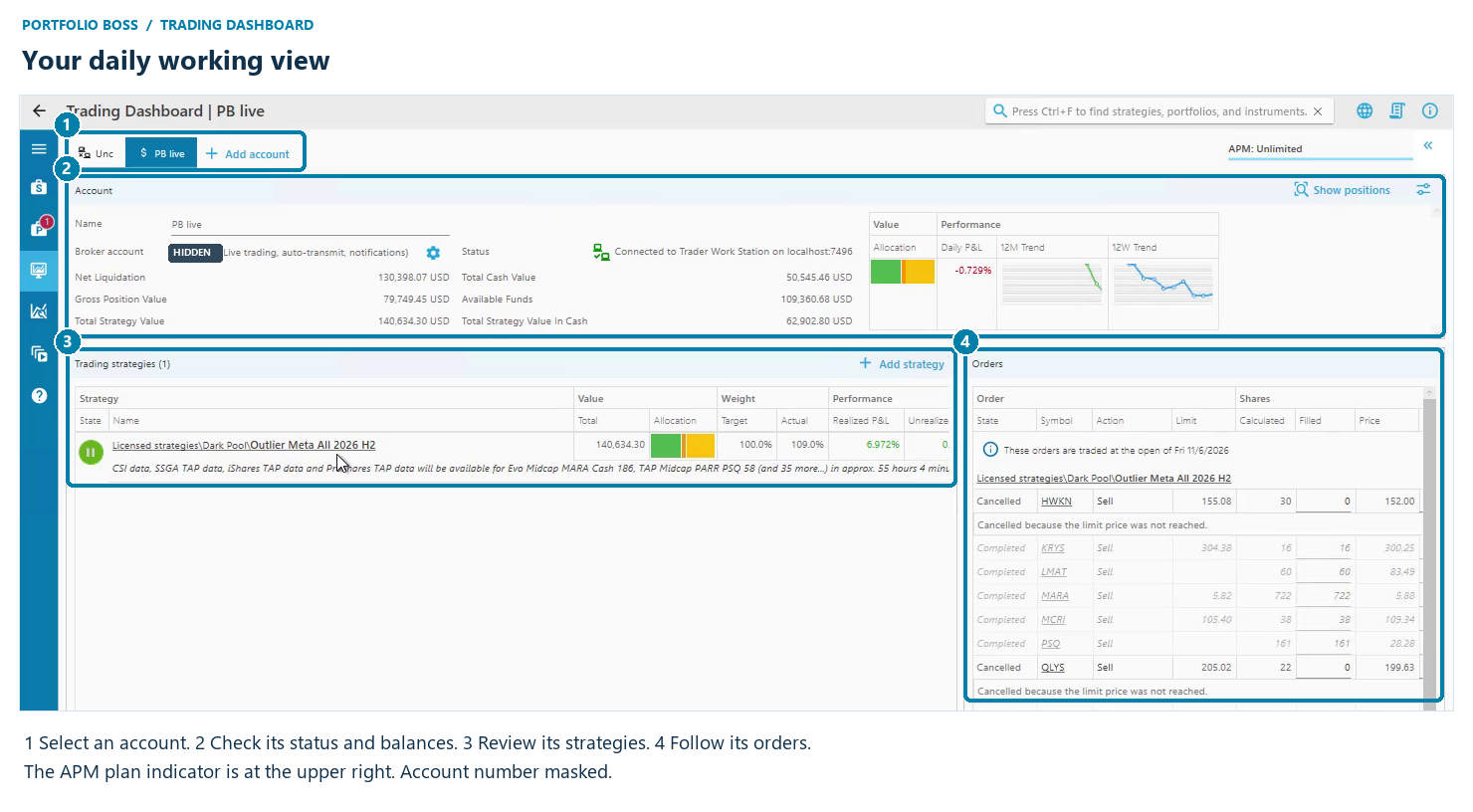
| Area | Use it to |
|---|---|
| Top tabs and Add account | Switch between accounts or configure another one. An unconnected account can support manual trading with another broker. |
| Account panel | Check connection, mode, balances, overall allocation, and performance previews. Show positions opens the broker comparison. |
| Trading strategies | Open a strategy, review its allocation and data status, or reach its funding and management controls. |
| Orders | Follow the selected account’s orders and the reasons behind their states. |
| APM indicator, upper right | See the APM plan shown for the installation. Dan’s example displays Unlimited; your plan may differ. |
If a grid looks cut off, use its horizontal scrollbar. The strategy management icons and some order details are farther to the right. Detail windows also have a square maximize control when you need more room.
Choose the task you want to complete
| Guide | You will learn to |
|---|---|
| Connect Accounts to the Trading Dashboard | Choose paper/live/unconnected mode, connect Interactive Brokers, and select manual or automatic transmission. |
| Monitor Account Value and Allocation | Read broker balances, strategy totals, allocation colors, trend previews, and the plan indicator. |
| Add Strategies and Inspect Positions | Add a strategy, open its configuration, inspect the allocation chart and positions, and find management controls. |
| Manage Strategy Funding and Rebalancing | Use an account-percentage target or manually add and withdraw strategy funding. |
| Configure Trading Order Settings | Understand the global → account → strategy hierarchy and configure entry and exit order settings. |
| Review Orders and Reconcile Broker Positions | Read fills and cancellations, and identify broker holdings that are not assigned to a strategy. |
| Reset, Stop Trading, and Remove a Strategy | Find Reset and Stop/remove, distinguish their purposes, and verify how remaining positions will be handled. |
A short daily check
- Select the intended account. Confirm paper or live mode and a connected broker status.
- Read the strategy messages. Check data availability and any visible issues before assuming the next orders are ready.
- Review Orders. Check the trading date, completed and canceled orders, quantities, and explanations.
- Investigate exceptions. Use Show positions if a holding or share count looks unexpected. Review unmanaged shares against the broker.
- Keep notifications and the trading machine available. Dan especially recommends email notifications while you are learning the workflow.
Based on Dan’s November 6, 2026 walkthrough in Portfolio Boss Unite 6.0.0.71. Screenshots show an example account and historical values, not recommended allocations or expected returns. Brokerage account identifiers have been masked. Labels and available features can vary by version and license.


Responses